
Well Harvester · Version 4
Your V4 System.
Your Support Hub.
The manual, installation videos, touchscreen guidance, and mobile app help for your Well Harvester V4—all in one place.
Have a V3 controller? Go to V3 Support →
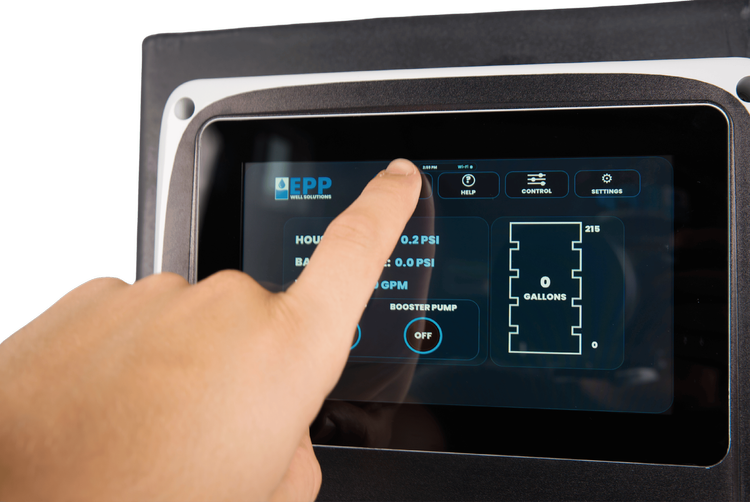
Start with the right instructions
The V4 Manual.
From Setup to Everyday Use.
Use the V4 installation and use manual for complete instructions, safety information, maintenance, and warranty terms.
Well Harvester® V4
Installation & Use
Open the PDF in a new tab for easier reading. To save a copy, use your PDF viewer’s download or save option.
Jump to a topic in the PDF
Page links work in supported PDF viewers. If yours opens the cover instead, use the manual’s table of contents.
Preview the V4 manual on this page
PDF preview not displaying on your device? Open the V4 PDF directly ↗
Watch the walkthroughs
See How
It Comes Together.
Choose a guide to watch here. Videos supplement the manual; always follow the current V4 manual’s safety and installation instructions.
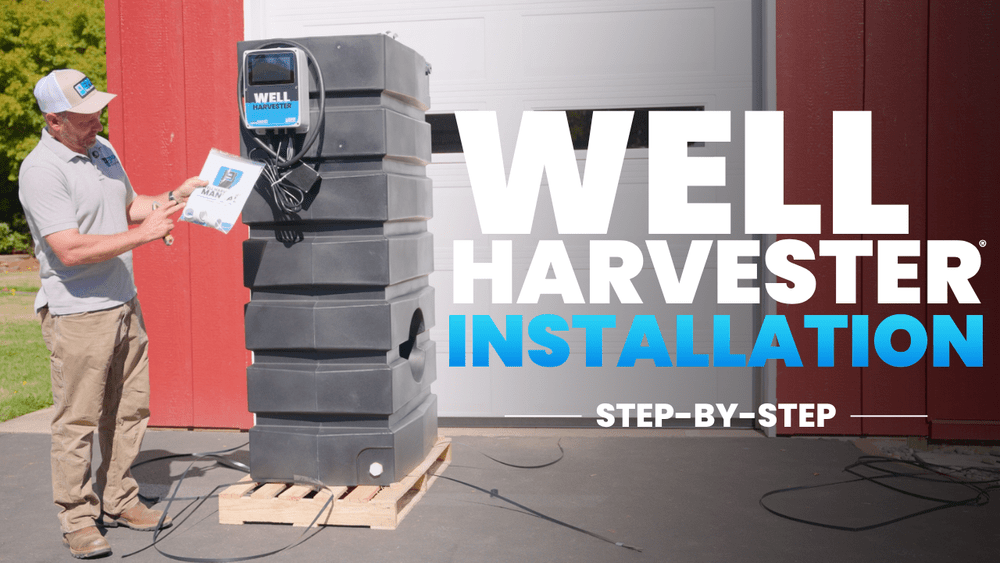 19:42
19:42Installation
Install Your Well Harvester
A step-by-step installation walkthrough.
Watch the Guide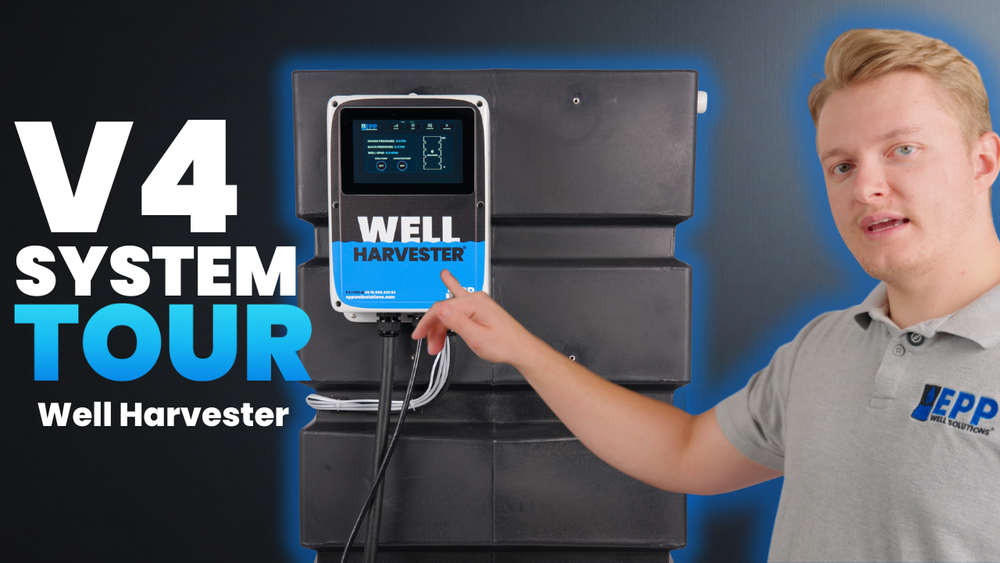 3:23
3:23Know your system
Take the V4 System Tour
See the components and how they work together.
Watch the Tour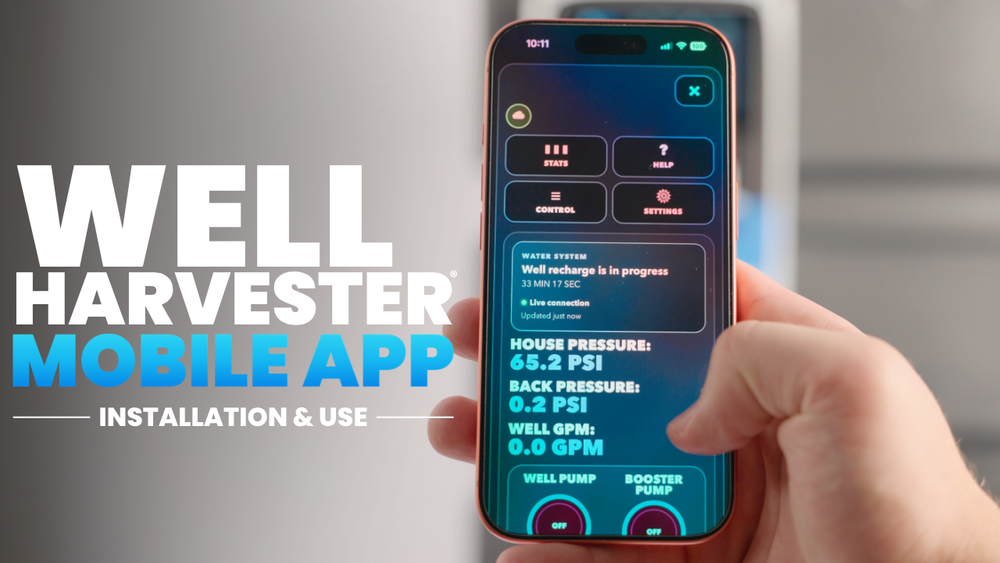 5:24
5:24Mobile access
Connect & Use the App
Follow the mobile app installation and use guide.
Watch App SetupConnect from your controller
Your Phone.
Your Water System.
Begin on the V4 touchscreen. The QR code shown by your own controller starts the app connection process for your system.
Read the App Instructions · Page 19Confirm Wi-Fi connection
In the controller’s settings, open Wi-Fi Networks and confirm the system is connected.
Open Phone Connect
Return to settings and choose Phone Connect to display the connection QR code.
Scan and follow the prompts
Scan the QR code with your phone, open the link, and follow the account and app setup prompts.
Common V4 questions
Understand
What You’re Seeing.
These short answers help explain normal system behavior. Use the manual for complete instructions, and reach our team if you’re unsure.
More Answers in the ManualThe touchscreen is dark. What should I check?
The screen may be asleep. Touch it once to show the screensaver, then again to return to the home screen. If it stays dark, contact support rather than opening the control enclosure.
Both pumps show OFF. Is something wrong?
OFF on the home screen can simply mean the pumps are not currently running. Pumps set to AUTO may be idle when there is no demand or while the well is resting. The status changes when the controller starts them. This display does not mean electrical power has been disconnected.
The tank level is dropping. Why isn’t the well refilling it?
The well may be resting after a low-water condition, or the system may be optimizing. Check the Control screen for resting or optimization status. If the tank keeps emptying without either condition shown, contact support. Do not repeatedly bypass recharge delays.
Why isn’t the booster running during first startup?
The booster waits until there is enough water in storage before supplying the house. Follow the startup instructions and on-screen prompts; see page 15 of the V4 manual. Contact support if startup does not progress as described.
Why does the system run optimizations?
Optimization adapts harvesting operation to your well’s performance, which can vary over time. It runs automatically during normal operation. Follow the initial startup prompts and contact support if optimization cannot complete.
Where are the maintenance instructions?
Page 16 covers sediment inspection and sensor-line flushing, including precautions for pressurized discharge. Follow those complete instructions before maintenance. Do not remove pressurized fittings or service energized equipment.
What information should I send support?
Include your V4 controller version if known, the displayed message or status, when the issue began, and photos of the controller and installation. For warranty questions, include your serial number and purchase information. Do not send account passwords or access codes.
Still need a hand?
Let’s Help You
Find the Next Step.
Tell us what your V4 is doing. A clear photo of the screen and a brief description of the issue help our team understand your setup.
Monday–Friday · 8 AM–4 PM Pacific
Outside business hours? Leave a voicemail or send an email.